Scale and deployment
Monitor screens and investigate playback problems
A report that a screen is blank can mean several things: the player has lost its connection, the booking is outside its schedule, the screen does not receive the channel, or a license or media problem prevents normal playback. An overview helps find the affected device; it does not by itself explain what the viewer sees.
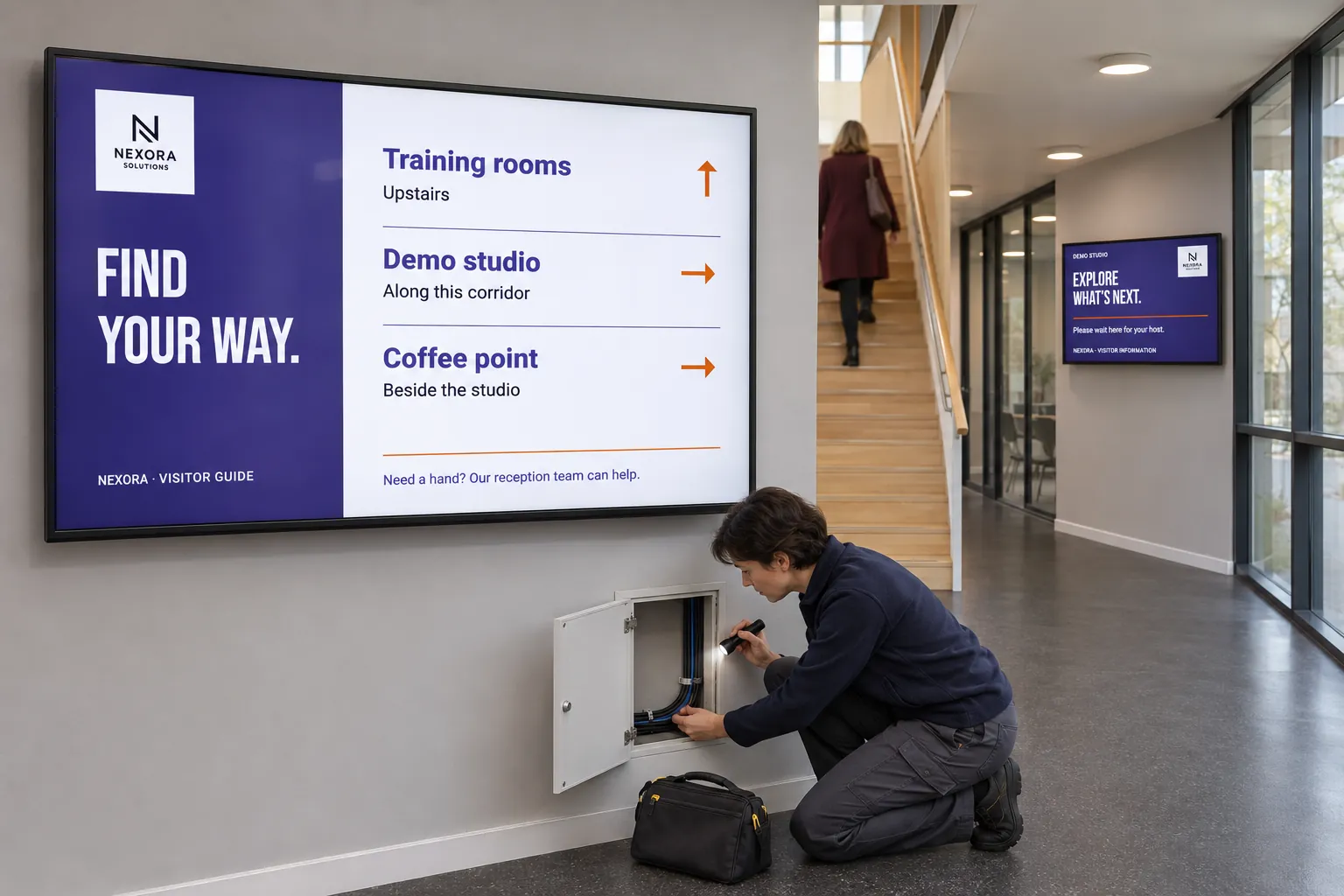
As screens spread across stores, offices, wards, and public buildings, combine local reports with the information in Publisher. Agree who monitors the screens and who follows up, so a warning does not sit unnoticed between the content team and the people responsible for the installation.
Use status to decide where to look
Dashboard screen widgets bring together connectivity and map information where the underlying data and permissions are available. The Screens area provides individual details, organization, preview, player information, and permitted remote actions.
An administrator can review locations before a busy day, while support compares a reported problem with the screen's current state and software information.
Keep the meaning of the evidence clear:
| Information | What to take from it |
|---|---|
| Online status | Connectivity information for ordinary registered screens. Demo and pre-registered records do not prove a connection. Online does not prove that the intended message is playing. |
| Offline status | A reason to investigate communication; the player may still play downloaded content. |
| Screen preview | What Publisher expects to play, which may differ from the physical display. |
| Update screenshot | A comparison with the device where actual screenshots are supported; some players supply a simulated image instead. |
The observed result matters as well as the status. An unreachable device still needs local power or network checks; remote actions cannot replace them.
Compare the publishing setup with the display
Use the status widget, map, or folder structure to locate a screen needing attention, then establish what should be playing. Check:
- The booking's published state and targets.
- The screen's subscription to the booking channel.
- The booking schedule and screen active time, including any booking override.
- Whether the media is valid and playable on that device.
Preview the expected output, then compare it with the screen. Update screenshot, Restart, and Player update require connectivity, the relevant permissions, and platform support. Being online does not make every remote action available.
If the player stays offline, check the physical device's power, network connection, and installation. Screen Status provides checks for an offline device. Working through publishing and device checks helps distinguish a connection problem from one in the schedule, targets, media, or license before choosing a remedy.
Check capacity before expanding the network
An operational review also helps plan the next installation. License status shows total, used, and free screen licenses alongside unlicensed devices. Review it before adding another group of screens and use License allocation to update Publisher from the licensing portal when allocation changes.
Resolve a shortfall before the installation depends on those licenses. This keeps capacity planning connected to the rollout rather than leaving it as a surprise for the team at the new location.
Keep software and installation responsibilities explicit
Screen details can help IT and support identify the player software involved in a problem. When an update is available for an online player, an administrator with the required permission can start it with Player update in the screen's menu.
Keep those responsibilities known to the people maintaining content. They should be able to pass a useful finding to the right person after checking the publishing conditions, while device and installation specialists retain control of the changes they own.